

Publishing Products to Your Store from Spocket
There’s a seamless way to take your curated products from the Import List to your online store. In this guide, you’ll learn how to use the Push to Store function effectively, ensuring that your categories and product details are accurately configured before going live. This final step is necessary for making your products available to customers, maximizing visibility, and enhancing your store’s appeal. Follow these steps closely to create a streamlined shopping experience for your audience.
Understanding the Import List
The Import List is where you manage all the products you’ve selected for your store. Here, you can review details, adjust settings, and prepare items for sale. For guidance, check out How do I add products to Spocket?
How to Access Your Import List
Accessing your Import List is simple. Navigate to the Spocket dashboard, where you’ll find the ‘My Products’ section. Click on the Import List tab to view products waiting to be pushed to your store and make any necessary adjustments.
Tips for Selecting Products from the Import List
Selecting products from the Import List requires keen judgment. Look for high-demand items, check supplier ratings, and ensure that product descriptions resonate with your target audience. Focus on trending categories and consider seasonal opportunities. Thou should choose products that align with your brand identity.
When evaluating your options, prioritize products that boast strong customer reviews, competitive pricing, and reliable shipping times. Analyzing the market trends can illuminate profitable opportunities while avoiding saturated options. Thou must also ensure the suppliers’ reliability and responsiveness to inquiries to maintain a smooth customer experience.
- high-demand items
- supplier ratings
- trending categories
- seasonal opportunities
- customer reviews
Utilizing the Push to Store Function
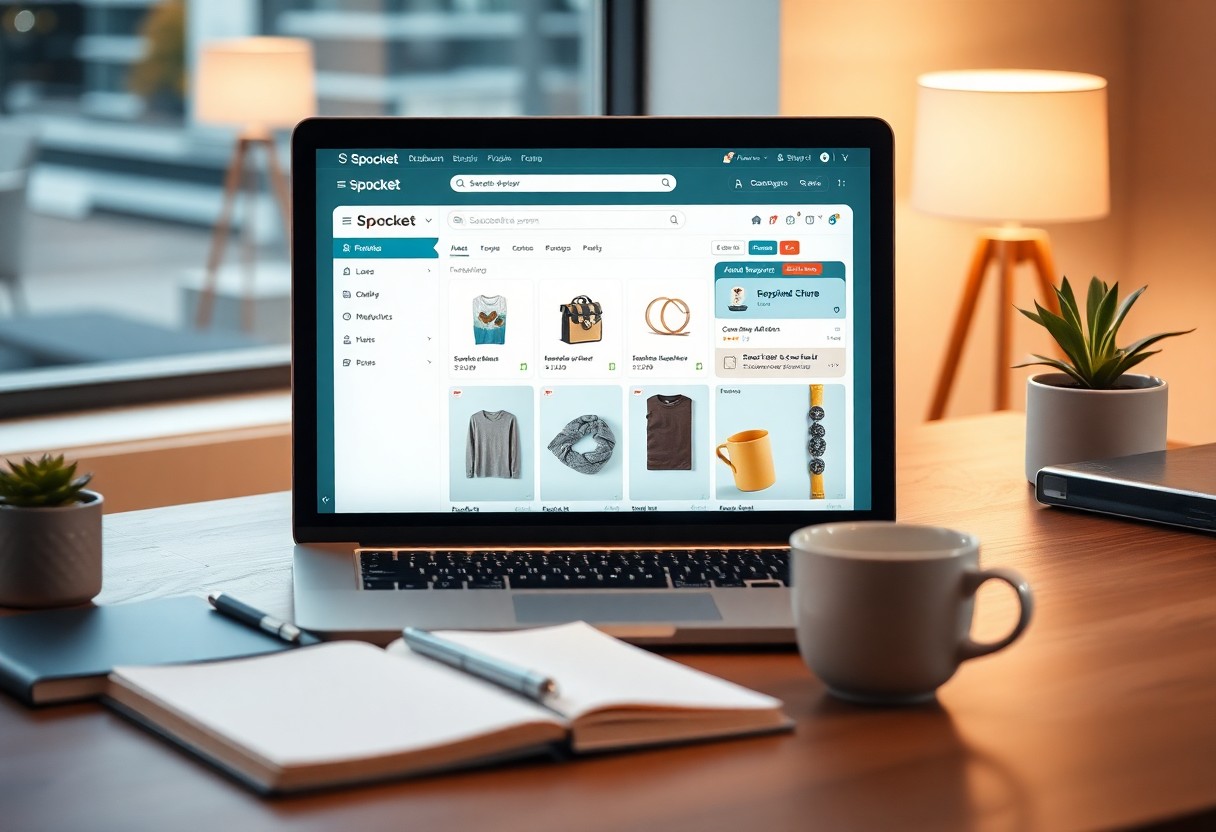
After you’ve selected your products, the next step is using the “Push to Store” function. This feature simplifies transferring items from your Import List directly to your online store, ensuring that your selected products become available to customers efficiently and without errors. By confirming all categories are correctly assigned and product details are accurately set, you enhance your store’s appeal and the shopping experience for your customers.
Step-by-Step Guide to Pushing Products
| Step | Action |
| 1 | Select products from your Import List. |
| 2 | Click on the “Push to Store” button. |
| 3 | Choose categories for your products. |
| 4 | Confirm details and final settings. |
| 5 | Publish products to your online store. |
How to Verify Successful Push
To ensure that the products were successfully pushed to your store, check the product listing section on your platform. Look for confirmation messages indicating successful uploads and verify that all product details, including images and descriptions, are accurately reflected in your store.
After pushing your products, navigate to your online store and access the product listing page. Verify that items appear with the correct titles, images, and descriptions. Cross-check categories and pricing to ensure everything aligns with your expectations. This final review is vital for maintaining quality and consistency, preventing any potential issues before your customers can see and purchase the products.
Setting Up Categories for Your Products
Organizing your products into categories simplifies navigation for your customers, enhancing their shopping experience. You can manage this effectively by visiting the Spocket help guide to Publish your Dropshipping Store with Spocket. This ensures a structured layout that plays a significant role in your store’s success.
How to Choose Appropriate Categories
Select categories that align with your target audience’s interests and purchasing behaviors. Consider conducting market research or examining popular trends within your niche to identify potential categories that will resonate with customers. This targeted approach helps in enhancing product discoverability.
Tips for Organizing Your Product Categories
To keep your categories well-structured, consider these tips:
- Group products by functionality or usage.
- Utilize seasonal or promotional categories to keep offerings fresh.
- Regularly review and update categories to reflect inventory changes.
- Employ a consistent naming convention for easier navigation.
Perceiving how customers browse helps you optimize their journey.
Creating an efficient categorization system requires ongoing refinement based on customer feedback and sales data. Emphasize using analytical tools to track performance metrics in each category. Consider consolidating underperforming categories while expanding successful ones. Updates aligned with user patterns can significantly boost engagement and sales. Perceiving customer preferences allows for a tailored shopping experience.
Completing Product Details
Once you’ve pushed products to your store, it’s time to finalize their details. This involves refining product descriptions, titles, and categorizing them appropriately to ensure your listings attract buyers and drive sales. Accurate completion of these details is pivotal in presenting your products effectively and enhancing their visibility in search results.
How to Edit Descriptions and Titles
You can easily edit product descriptions and titles by accessing the product management interface in your store. Focus on crafting compelling and engaging content that highlights the key features and benefits of your products. Ensure that each title is clear and includes important keywords to improve searchability and appeal to potential customers.
Important Factors in Pricing and Inventory Management
Setting the right price and managing inventory effectively is vital for your store’s success. Consider cost, competitor prices, and perceived value when determining your pricing strategy. Regularly review your inventory to avoid stockouts, align your supply with demand, and keep track of sales data to optimize your product offerings.
- Pricing strategy
- Inventory management
- Cost analysis
When managing pricing and inventory, it’s important to be proactive. Analyze sales trends and adjust your inventory accordingly to prevent overstock or stockouts. Pricing strategically can attract customers while ensuring profitability. Consider using dynamic pricing tools that adjust based on market demands and competitor activity. The right pricing and inventory management practices will enhance your operational efficiency.
- Sales trends
- Dynamic pricing
- Operational efficiency

Preparing Products for Publication
Once you have selected your products, it’s time to prepare them for publication in your store. This involves migrating items from the “Import List” using the “Push to Store” feature, ensuring all categories are properly assigned, and assembling your product details. For detailed insights, check out A Step-by-Step Guide to Creating Your Own Online Store.
How to Review and Finalize Product Settings
To finalize product settings, you need to check product titles, descriptions, images, and pricing. Ensure that each detail aligns with your brand’s voice and that your descriptions are compelling. Confirm that images are high-quality; this can significantly impact customer interest and trust.
Tips for Quality Assurance Before Going Live
Conduct a thorough review before your store goes live. Test the product links, check for spelling and grammar errors, and ensure that your pricing is accurate. It’s wise to create a checklist that includes the following:
- Product titles optimized for SEO
- Clear and engaging descriptions
- High-resolution images
- Accurate pricing and shipping details
Thou must ensure every element is polished to instill confidence in your customers.
Quality assurance is not merely a formality; it ensures your store operates without hitches. Begin by testing the entire buying process, checking if products are displayed correctly. Additionally, validate stock levels to avoid overselling. Ensure that customer support information is easily accessible. Quality assurance is your final line of defense to maintain customer satisfaction and loyalty. Thou must dedicate time to this phase to avoid potential pitfalls.
- Test purchasing process from start to finish
- Verify that stock levels are accurately reflected
- Check for customer support accessibility
Thou will reap the benefits of a well-optimized store when it goes live.

Going Live with Your Products
After fine-tuning your product details, you are ready to take the final step of launching your offerings. Ensure that all aspects of your product, from imagery to pricing, are finalized. With everything in place, you can confidently push your products to your store, making them accessible to your customers and ready for sales.
How to Publish Products to Your Store
To publish products to your store, navigate to the Import List in Spocket and select the items you wish to feature. Use the Push to Store button to transfer these products seamlessly. Double-check that your categories align with your brand, ensuring all details are accurately represented before your products go live.
Tips for Successful Product Launch
Launching a product effectively requires strategic planning. Focus on crafting vibrant product descriptions and utilizing high-quality images to attract buyers. Leverage your social media channels for announcements and consider promotional campaigns to generate buzz around your product. Perceiving your target audience’s interests can significantly enhance your launch’s success.
Effective product launches create lasting impressions. You can build momentum by selecting an ideal launch date, timing your release to coincide with holidays or events relevant to your audience. Incorporate influencer collaborations to extend your reach and consider offering exclusive discounts for first-time buyers.
- Product descriptions should be engaging.
- Promotions can amplify visibility.
- Social media is key for outreach.
Perceiving trends in your market may help you adjust your strategy for future launches, ensuring ongoing engagement and sales growth.
Conclusion
To wrap up, once you have selected your desired products from the Import List in Spocket, utilize the “Push to Store” function to seamlessly transfer them to your online store. Ensure that each product’s categories and details are accurately configured to reflect your brand’s identity before going live. This careful preparation helps you reach your customers effectively, enhancing their shopping experience and increasing your chances of sales success.
FAQ
Q: How do I access the Import List in Spocket?
A: To access the Import List, log into your Spocket account and navigate to the “Import List” tab located on the dashboard. Here, you can view all the products you have selected for potential publishing.
Q: What steps do I need to take to push products to my store?
A: Select the products you wish to publish from your Import List and click on the “Push to Store” button. This action will transfer the chosen products to your online store, making them available for your customers.
Q: How can I ensure product categories are correctly set up before publishing?
A: After pushing products to your store, review each product’s details. Ensure you assign appropriate categories by selecting from the dropdown menus provided for each product in your store’s dashboard.
Q: What product details should I verify before going live?
A: Before publishing, check the product title, description, pricing, images, and inventory levels. Ensure that all information is accurate and aligned with your store’s branding for a cohesive customer experience.
Q: Is there a way to preview my products before they go live?
A: Yes, after pushing products to your store but before publishing, you can preview them by selecting the product in your dashboard. This allows you to see how they will appear to customers and make any necessary adjustments.