
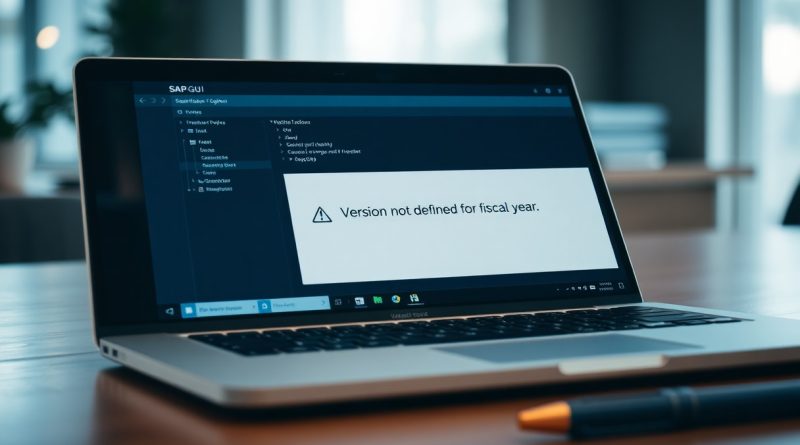
SAP Fiscal Year Variant Error – How to Solve “Version Is Not Defined for Fiscal Year”
Many enterprise users and consultants, guided by strong engagement on SAP v2 content, will use this concise guide to help you resolve the “Version Is Not Defined for Fiscal Year” fiscal year variant error with clear, step-by-step SAP instructions.
Key Takeaways:
- Error occurs when the system references a version identifier that has no configuration entry for the specified fiscal year (message shows the missing Version ID and Fiscal Year).
- Common causes include a missing or incomplete version definition in the relevant module (CO planning, Asset Accounting, Funds Management, etc.), the fiscal year variant not being assigned to the company code, or year-mapping mismatches after a fiscal-year change or system copy.
- Troubleshoot by reproducing the error and capturing the exact Version ID and fiscal year, identifying the module that raised the message, and checking the module’s configuration in SPRO for version-to-year entries and company-code assignments.
- Resolve by creating or maintaining the missing version entry for that fiscal year in the appropriate IMG node (define planning/ledger/depreciation/budget versions), assign the correct fiscal year variant to the company code, and copy previous-year settings if needed.
- Validate the fix with test postings or planning runs, run relevant consistency checks and change logs, and transport corrected configuration from development to quality/production as required.
Factors Driving the “Version Is Not Defined” Error
SAP reports “Version is not defined for fiscal year” when your fiscal year variant lacks an assigned version for the posting period, signaling misconfiguration in fiscal year variant settings. Provides a clear explanation of the error and identifies the likely causes within the SAP fiscal year variant settings. Thou must check variant, version and posting-period assignments.
- Missing version assignment for the fiscal year variant
- Inconsistent posting-period ranges
- Module version mismatch between CO and FI
- Incorrect number of posting periods defined
Mismatch between Controlling and Financial Accounting
Controlling and Financial Accounting mismatches occur when you assign different versions to CO and FI, causing the “Version is not defined for fiscal year” error; you must align the versions in the fiscal year variant settings to fix postings.
Missing entries in the version maintenance table
Absent entries in the version maintenance table prevent SAP from resolving the version for a fiscal year variant; you should add the missing rows for the specific fiscal year and version so posting can proceed.
Check the version maintenance table for missing rows tied to your fiscal year variant, add the exact version entries, and verify posting-period ranges and module assignments so SAP recognizes the version and stops raising the error.
How-To Steps for Resolving the Fiscal Year Conflict
Steps to resolve the fiscal year conflict: Outlines the specific configuration steps needed to resolve the error and restore normal processing, showing how you update the fiscal year variant, assign the version for the affected fiscal year, and adjust leading ledger settings in SPRO/IMG.
Defining the version for the specific fiscal year
Assign the version for the specific fiscal year in IMG (SPRO): select the fiscal year variant, add the version entry, save, and transport the change so the system recognizes the version and you restore normal processing.
Maintaining settings for the leading ledger
Configure leading ledger settings by mapping the assigned version to the leading ledger, aligning the active fiscal year and posting periods, and updating ledger group assignments so you restore normal processing following the configuration steps.
Verify consistency across company codes, run test postings, check ledger/version assignments in IMG and table views, and transport validated changes to production so you maintain the leading ledger settings and restore normal processing.
Expert Tips for SAP Fiscal Year Management
As a consultant, you should implement scheduled audits, version checks, and a change log to prevent variant and version definition errors; see Version 0 is Not Defined for Fiscal Year 2012. After you enforce quarterly audits and document every variant update, you reduce repeat incidents.
- Strategic recommendations for consultants to prevent future variant and version definition errors.
- Schedule quarterly (every 3 months) audits and version checks across DEV, QAS, PRD.
- Assign a single owner per company code for fiscal year variants and versions.
- Require QAS transport testing and sign-off, including rollback procedures before PRD moves.
- Maintain a change log with timestamps, approver names, and version history.
Validating year-dependent settings annually
You must validate year-dependent settings annually across DEV, QAS, and PRD, testing variant/version mappings for fiscal years (e.g., 2012) before production cutover and logging discrepancies in a change register.
Coordinating cross-module fiscal year variants
Align your FI, CO, MM, and SD teams to confirm a single fiscal year variant/version per company code, performing cross-module tests and documenting owner and status in the change log.
Map variant IDs, versions, and posting periods across FI and CO; you must run scenario tests for fiscal year 2012 and upcoming years, assign a single owner per company code, and enforce a rollback plan in QAS before PRD transport.
To wrap up
To wrap up you should follow the configuration steps: define fiscal year variant in SPRO, create posting periods, assign version V001, and set variants in OB29; key takeaways: verify variant, copy correct version, and transport changes-this summary of the configuration steps and key takeaways resolves the “Version Is Not Defined” error.
FAQ
Q: What does “Version Is Not Defined for Fiscal Year” mean?
A: The message indicates the system attempted to use a planning/valuation/version key that has no configuration entry for the fiscal year being processed. The error typically appears in planning, consolidation, asset valuation, profitability analysis, or posting jobs when the process expects a version (for example: Actual, Plan, Forecast) to be available for the fiscal year but finds no mapping. The transaction or program name and the version code usually appear in the error text, which helps locate the affected object.
Q: What are the most common causes of this error?
A: Typical causes include: the version was never created for the new fiscal year; the version exists but was not assigned to the company code, ledger, COPA valuation or other module object; a fiscal year variant change left gaps for specific years; a transport to the target client/system omitted the version or assignment; the process used an incorrect fiscal year or special-period parameter; and insufficient authorizations prevented a config entry from being visible during runtime.
Q: How do I diagnose where the missing version mapping is required?
A: Reproduce the error and note the transaction/program and the version code in the message. Check the application log (SLG1) and short dumps (ST22) for context. Verify the fiscal year variant and company-code assignment in IMG (SPRO -> Financial Accounting -> Financial Accounting Global Settings -> Fiscal Year and Posting Periods -> Maintain Fiscal Year Variants and Assign Variant to Company Code). For planning/valuation versions, open the module-specific IMG node (for example Controlling -> Planning -> Versions or Profitability Analysis -> Valuation/Versions) and search for the version key. Inspect table T009 to confirm fiscal-year-variant entries and review transport logs to see if the version creation or assignment was moved between systems.
Q: What exact steps fix the problem when a version is missing for a fiscal year?
A: Identify the module and the version code from the error. In the relevant IMG node create or extend the version for the fiscal year: SPRO -> the module (Controlling, COPA, Consolidation or Asset Accounting) -> Planning/Valuation -> Define/Manage Versions, then add the version and map it to the fiscal year. Assign that version where required (company code, ledger, valuation area, planning schema). Transport the change to quality and production using a CTS request. Validate the fix by re-running the failing transaction or batch job and confirm the process completes for the target fiscal year. If the error persists, re-check the fiscal year variant assignment to the company code and confirm that special periods are correctly configured for that fiscal year.
Q: How can I prevent this error during a year-end rollout or when creating a new fiscal year?
A: Add version creation and assignment to your year-end checklist: include steps to create plan/forecast/valuation versions for the upcoming fiscal year, assign versions to company codes/ledgers/valuation areas, and include these changes in transport requests. Run a dry test of critical posting and planning processes in a QA client after transports. Maintain documentation listing version keys and their assigned fiscal years. Implement a simple validation report that checks version-to-fiscal-year mappings in the relevant tables before cutover to production to catch omissions early.